![Bridge logo w vms.png]](https://support.bridgevms.com/hs-fs/hubfs/Bridge%20logo%20w%20vms.png?height=50&name=Bridge%20logo%20w%20vms.png)
Purpose & Objectives
A need was identified to provide a way in which the hiring community could provide feedback on candidate performance after they’ve completed an assignment.The purpose of this document is to provide detailed guidance on setting up and managing end of placement surveys within BridgeVMS.This feature enables Hiring Managers to provide structured feedback on a candidate’s performance at the end of assignments.This feedback is captured directly within BridgeVMS and made available to MSPs and Agencies, helping to improve hiring decisions, track candidate performance over time and enhance supplier and workforce quality.
Key Benefits
- Standardised feedback collection across assignments
- Improved visibility into candidate performance
- Data-driven decision making for future placements
- Exportable reporting for further analysis
Overview of Surveys
BridgeVMS’ Surveys feature, originally created for interview scheduling, has now been expanded to cover end of placement feedback requirements. The surveys feature enables MSP users to configure surveys on an Employer profile that can then be completed at the end of an assignment. The idea behind this is so that agency users and MSP users, can review Employer feedback once they are offboarded which can then be further evaluated. This can be done by navigating to the Employer and selecting “Surveys”.
How it Works
- Configure a survey on the Employer profile
- Assign the survey to the candidate placement (usually upon candidate confirmation)
- Survey is triggered when the assignment ends
- Hiring Manager completes the survey
- Results are stored and available for review and export
Roles and Permissions
|
Role |
Capability |
|
MSP Users |
Create and manage surveys, view all results |
|
Hiring Managers |
Receive and complete surveys, view results |
|
Agency Users |
View results for their candidates |
|
Employer Users |
View results for agency and bank candidates |
Set up
Employer Surveys:
- Go to “Employers” on the left-hand menu and select the Employer of choice.
- Select “Surveys” to open the survey modal.
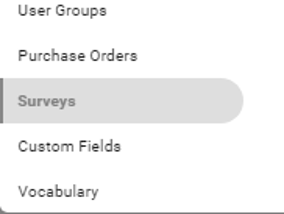
- Click on the “+ Add new survey” from within the survey modal.
- Give your survey a name and add a description if you wish.
- Define the survey type – in this case it would be “End of Placement”. Note, this is for assignment jobs only, shift jobs are exempt.
- Upon selecting this option, you will see an additional option of “Assignment duration limit”. This is where you can define the minimum number of weeks an assignment should be for an end of placement survey to be triggered. This is a numerical entry box.
- Determine if scoring should be used in the survey by selecting “Enable Scoring”.
- Define whether this survey should be active or inactive by selecting or deselecting the “Active” checkbox.
- You can add “Matching Conditions” to the survey if you wish, such as Category, Region/Work Address, or Hierarchy.These should be used if you wish to segregate this survey to only be selectable if the job falls into any of these defined areas.
Survey Creation Modal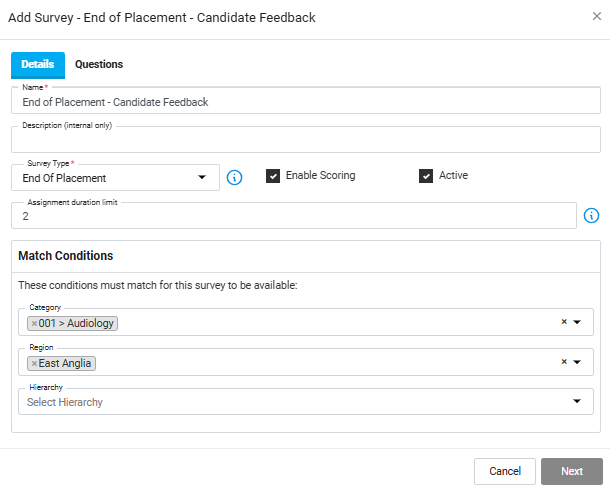
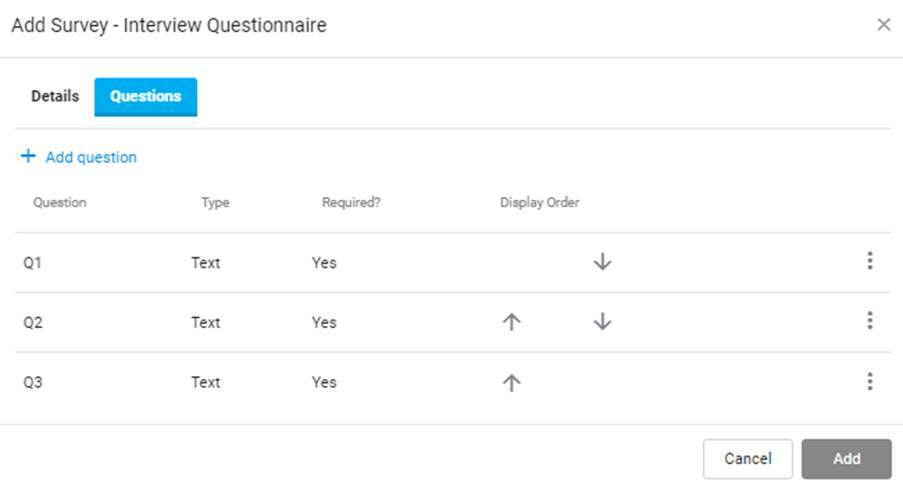
- Click over to the “Questions” tab to add your questions to the survey. Note, you will see 3 default questions listed that you can edit by clicking on them. If you need more than 3, you can click “+ Add question”.
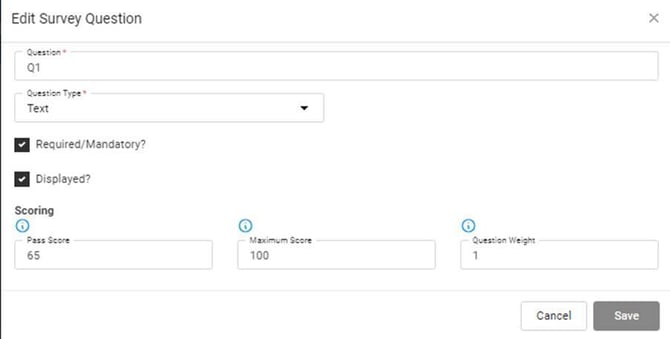
- When editing or adding a new question, enter the question in the question box.
- Select the question type. You can choose from the following:
- Text
- Single Choice
- Multiple Choice
- Number – Integer
- Number – Decimal
- Date
- Date/Time
- Time
- Rating
- True/False
- Yes/No
- Determine if the question is “mandatory/required” and whether it should be displayed.
- If scoring is enabled, you can then determine:
- the “pass score” - This is the minimum that the candidate must score for this question to be marked as passed.
- the “maximum score” - This is the maximum score for this question and is used to calculate the overall percentage.
- the “question weighting” - This value is a multiplier that is used to weight the importance of the question. A value of 1 (the default and minimum weight) means the question weight is normal. A value of 2 means the score for this question is to be calculated as twice as important in the overall result.
- Click “Save” at the bottom of the modal to save your question.
- You can re-order the questions using the arrows displayed on the main survey modal.
- Once complete, click “Add” to add your survey.
When the survey is set up with “Active” ticked, it will display with an “Active Status”:
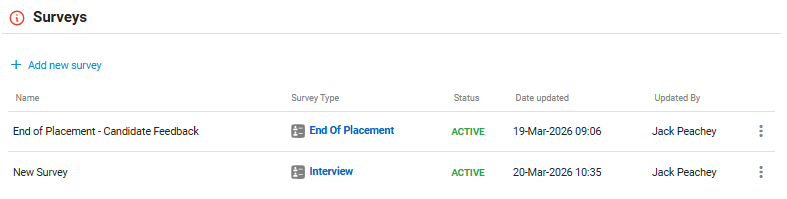
The surveys saved against the Employer profile will now be available to select when confirming a candidate against an assignment that matches the criteria set out in your survey.
Process
Requesting and Completing an End of Placement Survey
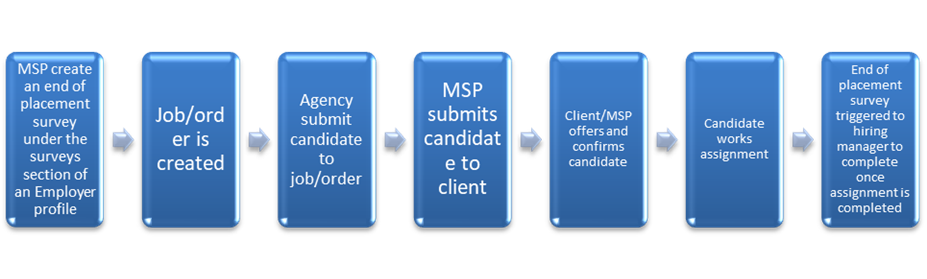
Adding a survey to an assignment:
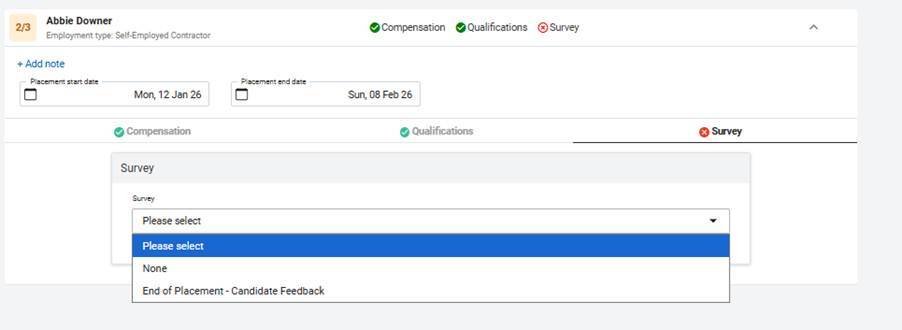
From the change status page when confirming a candidate into an assignment, you will notice a “Surveys” tab. From here you will be able to select which survey you’d like to add to this assignment from the list available. If you’d prefer the assignment not to have an end of placement survey assigned, you can select “None”:
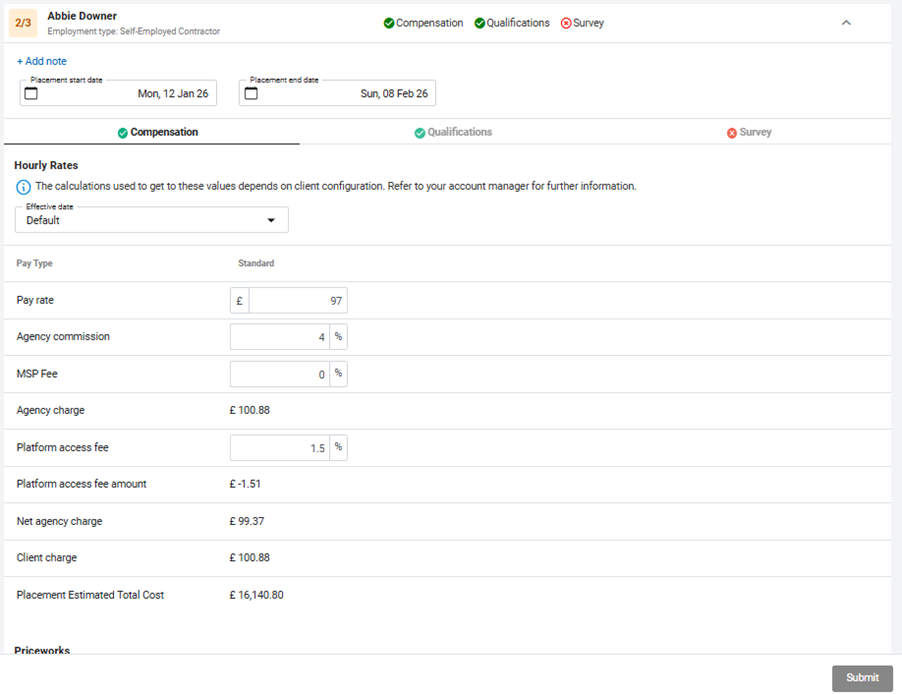
The survey tab will initially be displayed with a red cross indicating that action is required at this stage. Simply click on the survey tab and then select which survey should be applicable and then click “submit”.
Once the placement is created, you will notice the end of placement survey is indicated directly on the placement.
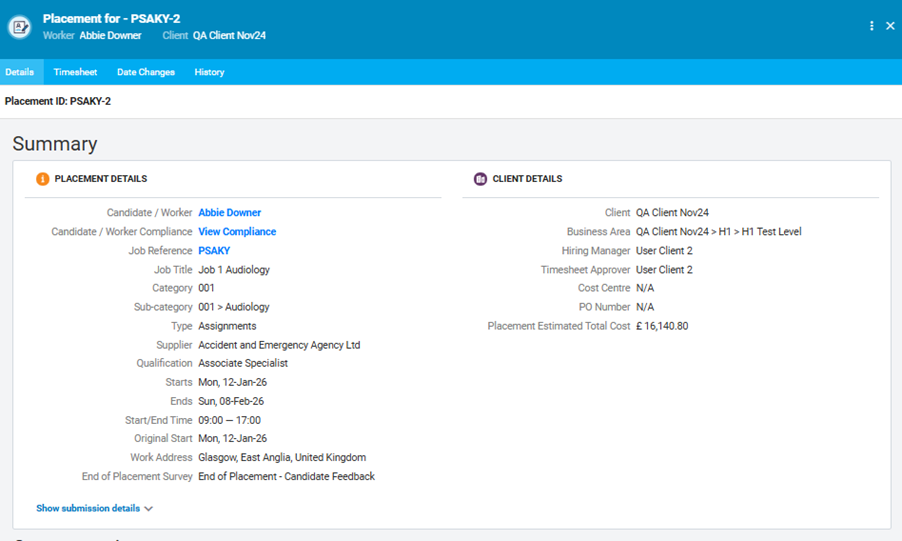
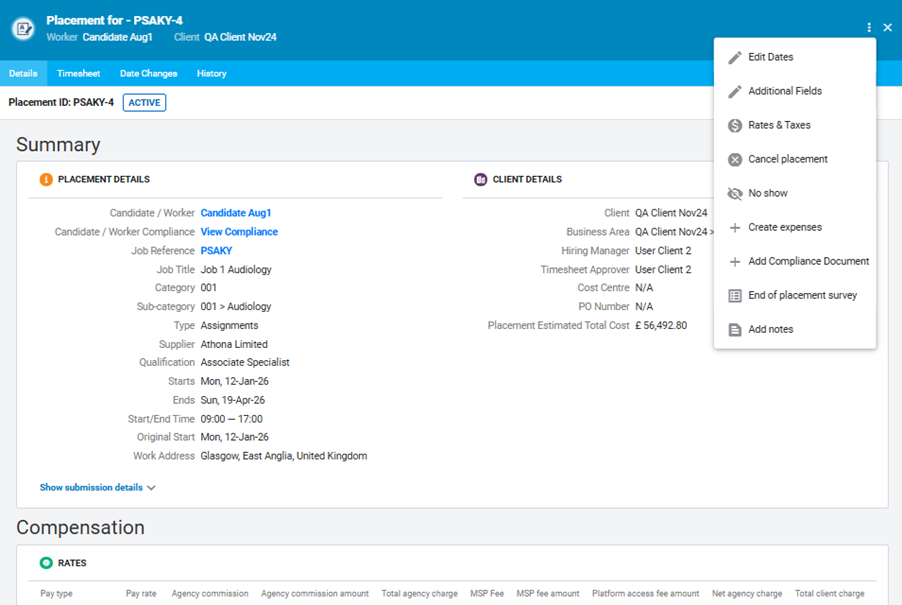
If you decided to not include an end of placement survey on the placement and later change your mind, or you want to change the survey you’ve added, you can do this via the placement ellipsis menu. Click on the ellipsis menu in the top right corner of the placement window and then select “End of Placement Survey”
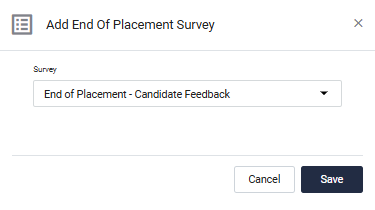
Here you can select which survey you want to add to the placement:
Completing an End of Placement Survey
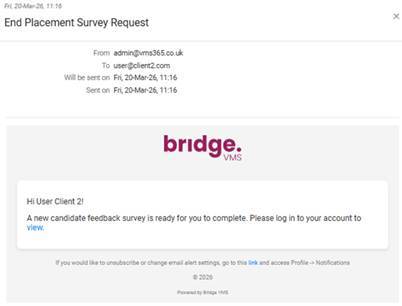
Once an assignment that contains an end of placement survey is completed, the survey is automatically triggered to the hiring manager. They will receive an email notification informing them that a survey is ready to complete:
The next time they log in they are greeted with a pop-up window that explains that a new end of placement survey is available to complete.
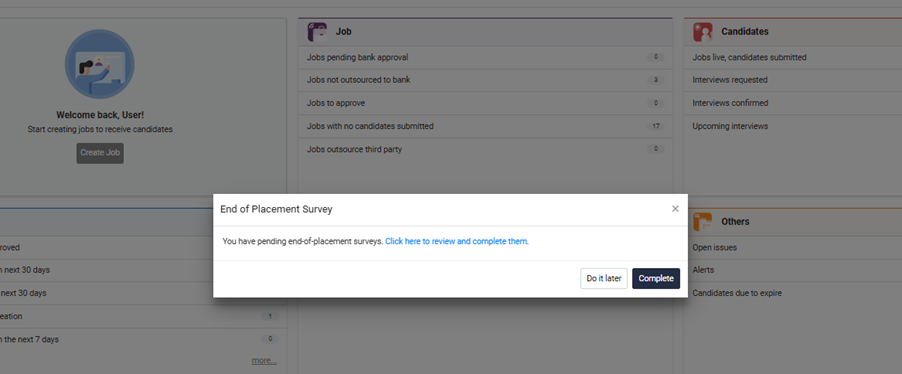
The hiring manager can choose to complete the survey later by clicking “Do it later”. This will close the pop-up window and the survey will be stored in the “Pending Candidate Feedback” section and can be revisited at a later stage.This is available to add to the user’s homepage widgets under the placement section.
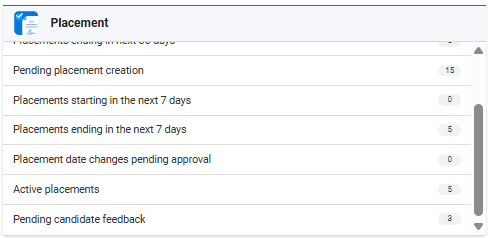
Or, they can click “Complete” to complete the survey there and then.
Clicking “Complete” opens up the “Pending Candidate Feedback” section and displays all the available surveys to complete:
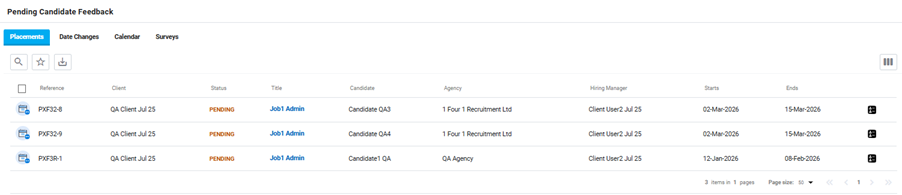
To complete a survey, the user can click on the row associated to the relevant placement, or by clicking the survey icon on the right hand side. This will open up the survey:
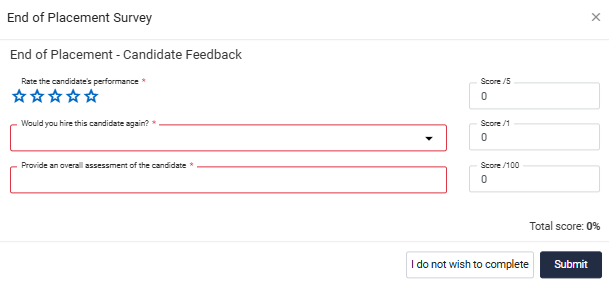
Here the user has the option to say “I do not wish to complete”. If this is selected, the survey is marked as not completed. If they wish to complete the survey, they just need to answer the questions, and provide a score if necessary, and then click “Submit”. 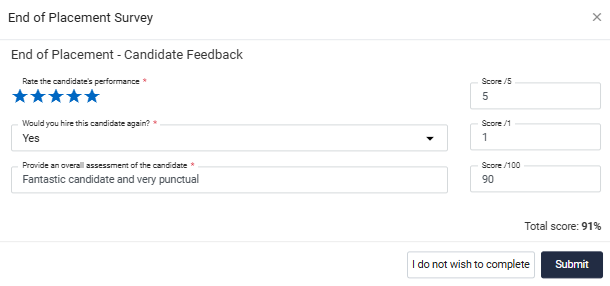
Reviewing candidate feedback
Once a survey is complete, agency and MSP users will be notified via an email notification:
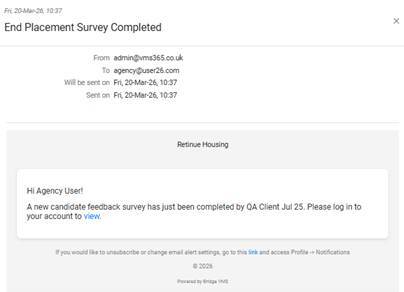
They can then view the completed survey(s) on the candidate’s profile under the “Surveys” section. 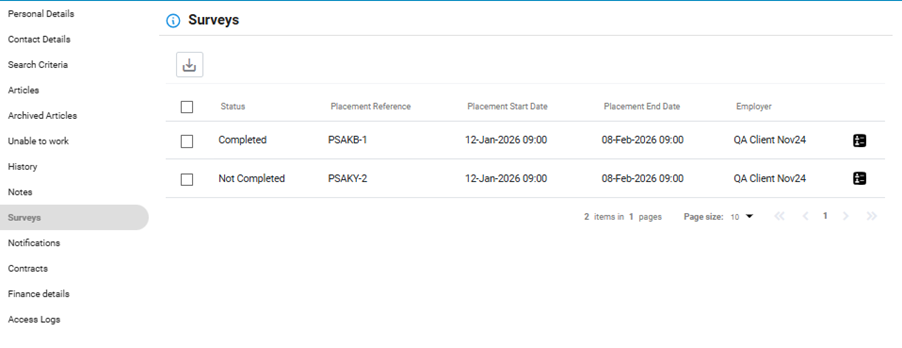
Or they can be reviewed in the “Surveys” section which his located under “Placements”.
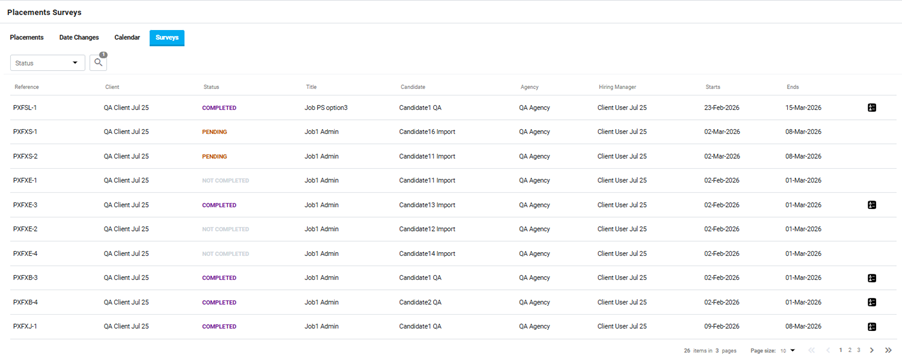
Agency users will have visibility of all surveys associated to their candidates.
MSP users will have visibility of all surveys
Client users will have visibility of all surveys associated to their Employer – covering bank and agency workers.
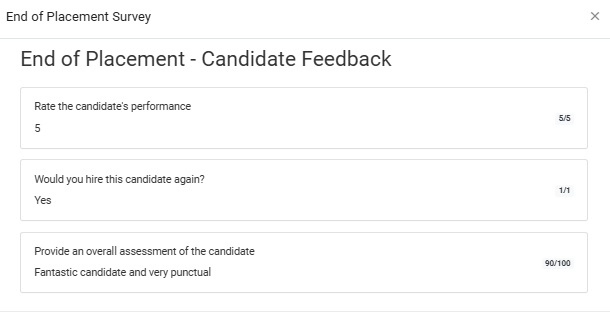
To view the results of a survey, simply click the survey icon on the right hand side of the grid view. This will open up the feedback provided by the Employer:
Exporting Data
This data can be exported to Excel for further analysis using the download icon at the top of the grid view on the candidate profile:
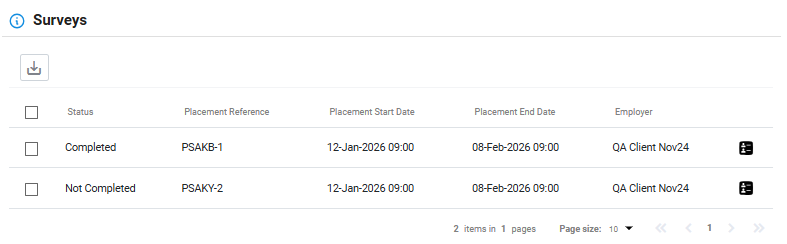
Surveys that were not completed by the hiring manager will show here with a status “Not completed”.
Behaviour Rules and Edge Cases
- Surveys only appear selectable if:
- The assignment meets the duration limit
- The Survey is active
- The matching conditions are satisfied
- Only one survey can be assigned per assignment.
- If multiple surveys match the criteria, all are available for selection during placement creation
- If a survey is not completed, it remains in the system with the status “Not completed”.
Troubleshooting and Support
Support
For further assistance, contact BridgeVMS support by raising a ticket via the help section or clicking this link https://support.bridgevms.com/home
FAQs
Q1: When is an End of Placement Survey triggered?
A1: The survey is triggered automatically when an assignment is completed, provided it meets the defined duration and matching conditions.
Q2: Can I add or change a survey after a placement has been created?
A1: Yes. You can update or assign a survey at any time via the placement’s ellipsis menu.
Q3: What happens if no survey is selected?
A3: No feedback request will be triggered unless a survey is later added to the placement.
Q4: Can multiple surveys be assigned to one placement?
A4: No. Only one End of Placement Survey can be assigned per placement.
Q5: Who completes the survey?
A5: The Hiring Manager associated with the placement is responsible for completing the survey.
Q6: What if the Hiring Manager does not complete the survey?
A6: The survey will remain in the Candidate Feedback section with a status of Not completed until it is completed or declined.
Q7: How does the Assignment Duration Limit work?
A7: The survey will only trigger if the assignment length meets or exceeds the defined minimum number of weeks.
Q8: Who can view survey results?
A8: Below is a summary of user types that can view survey results:
- MSP users: All results
- Agency users: Their candidates
- Employer users: Bank candidates
Q9: Can survey results be exported?
A9: Yes. All survey data can be exported to Excel for reporting and analysis.
Q10: What happens if a survey is inactive?
A10: Inactive surveys are not available for selection and will not be triggered.
Copyright © 2026 BridgeVMS All Rights Reserved | Proprietary and Confidential