![Bridge logo w vms.png]](https://support.bridgevms.com/hs-fs/hubfs/Bridge%20logo%20w%20vms.png?height=50&name=Bridge%20logo%20w%20vms.png)
Purpose
The Taxes module defines how tax is calculated and applied to the client invoices and agency invoices that BridgeVMS generates. Tax rules are configured by MSP users against an employer, versioned over time using tax cards and effective dates, and can be targeted at specific parts of an organisation using overrides.
Contingent workforce invoicing rarely carries a single flat rate. Different categories of work attract different treatment, for example VAT exempt medical supply sitting alongside standard rated administrative supply within the same client. Different work locations can fall into different tax jurisdictions, which matters particularly in US instances where state and municipal taxes apply. Tax rates themselves change on a date set by the tax authority, not on the date somebody remembers to update the system.
Recording these rules in the platform means tax is calculated at the point of invoice generation rather than corrected by hand afterwards, and gives finance an auditable record of which rate was applied to which invoice and why.
Related modules
- Billing Entities - the entity issuing the invoice and the tax registration number printed on it.
- Invoice Rules - determines what is invoiced, to whom, and in what format. Tax is applied to the output of the invoice rule.
- Direct Engagement and IR35 - direct engagement changes which portion of the charge is taxable.
- Global Rate Changes and Effective Date Rates - tax is one of the effective dated rate areas, and rate changes to live placements are processed through that module.
- Commissions and Fees and Platform Access Fees - override behaviour in the tax modal follows the same pattern used in those modules.
Set up Before you start
- Confirm each billing entity that will issue invoices carries a valid tax registration number, for example a VAT registration number, Federal ID or State Tax ID.
- Confirm invoice rules are configured for the employer. Tax is applied to the invoice produced by the invoice rule, so the invoice rule should be configured first.
- Confirm supplier commissions and MSP fees are configured, since several calculation types are based on those fee elements.
- Confirm the organisation structure is loaded. Agencies, categories, job/order templates, qualifications, work addresses, hierarchy and locations are the fields available as overrides, so anything not yet configured cannot be targeted.
Access and permissions
Any MSP user who can edit an employer profile can configure that employer's tax rules. Client, agency and candidate users have no access to the module at any level.
Creating a tax rule
- Go to Employers from the menu on the left hand side and select the employer.
- Click Taxes in the employer profile menu.
- Click Add New Tax Rule to open the tax rule modal.
- Complete the fields as set out below.
- Add any overrides required.
- Click Save.
- All tax cards held against the employer are compared against the date worked on the timesheet.
- The card whose effective date has passed and sits closest to the date worked is selected. Where no effective dated card is in force, the baseline card applies.
- Where an effective date falls midway through the timesheet, the timesheet is split at that date and each portion resolves its own card.
- All rules on the selected card matching the invoice type, client or agency, are gathered.
- Rules whose override conditions do not match the timesheet are discarded.
- Where more than one rule still matches, the highest priority override wins, using the priority order below.
- Where no override rule matches, the rule with no overrides on that card applies.
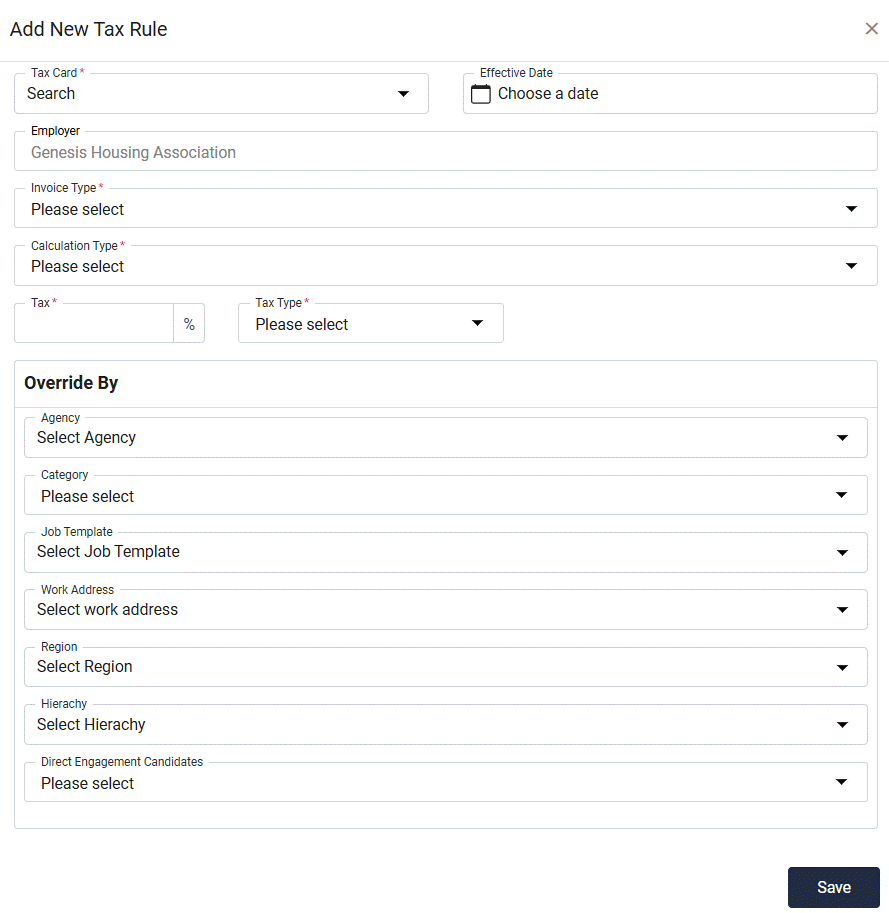
Tax rule fields
|
Field |
Mandatory |
Description |
|
Tax card |
Yes |
Select an existing tax card from the drop down, or type a new name and click the + button to create one. A tax card groups the tax entries that share an effective date, in the same way rate cards are used elsewhere in the platform. |
|
Effective date |
No |
The date from which the rule applies. Selecting an existing tax card pre populates this. Leave blank on the first entry so the rate applies from the start of time. Give each subsequent entry the date the new rate takes effect. |
|
Invoice type |
Yes |
Whether the rule applies to the client invoice or the agency invoice. A rule applies to one or the other, so a client that is taxed on both sides needs one rule for each. |
|
Calculation type |
Yes |
The value the tax percentage is calculated against. The options available depend on the invoice type selected. See the calculation types tables below. |
|
Tax percentage |
Yes |
The rate, entered numerically. Zero is a valid entry and can be used for zero rated supply, so the treatment is recorded explicitly rather than by omission. |
|
Tax type |
Yes |
The classification carried through to the invoice and to reporting. UK instances use VAT. US instances use State and Municipal. |
|
Overrides |
No |
Restricts the rule to specific parts of the organisation. See overrides below. |
Calculation types
The calculation type determines the base value the percentage is applied to. The options differ by invoice type, because the MSP fee element does not appear on the agency invoice.
Client invoice
|
Calculation type |
Tax is calculated on |
|
On total client charge |
The full invoiced amount to the client, comprising pay, agency fee, MSP fee and rebates. |
|
On total agency charge |
Pay plus agency fee, excluding the MSP fee and rebate. |
|
On agency fee only |
The agency commission element only, excluding pay. |
|
On MSP fee only |
The managed service fee element only, excluding pay and agency fee. |
Agency invoice
|
Calculation type |
Tax is calculated on |
|
On total agency charge |
Pay plus agency fee, i.e. the full amount payable to the agency. |
|
On agency fee only |
The agency commission element only, excluding pay. |
Why the fee only options matter. In UK healthcare staffing, the supply of a medical locum and nursing staff can be exempt while third parry fees, such as the MSP fee is standard rated. Configuring a client invoice rule on agency fee only or on MSP fee only applies tax to the fee element without applying it to pay, and avoids the manual credit and rebill that would otherwise follow.
Tax types
|
Instance |
Tax types available |
Notes |
|
UK |
VAT |
Standard, reduced and zero rated treatment is expressed through the tax percentage entered on the rule. |
|
US |
State, Municipal |
State and municipal tax are configured as separate rules so each rate is shown and reported independently. Both commonly use the work address or location override to target the correct jurisdiction. |
Overrides
Overrides work in the same way as overrides for commissions and other fees. Where a client has a single tax treatment across the whole account, no overrides are needed and a single rule per invoice type is enough. Overrides are only required where the treatment varies. The following can be used:
- Direct engagement candidate
- Agency
- Job/order template
- Category
- Qualification
- Work address
- Hierarchy
- Location (region/state)
Multiple overrides can be added to a single tax rule, and multiple rules can be held against a single employer. A rule applies when the timesheet being invoiced matches every override condition on that rule.
Tax cards and effective dates
Tax cards give tax the same effective dated versioning used for job templates, supplier commissions, MSP fees and platform access fees.
- Each employer must hold a default tax card, which acts as the baseline until the first effective dated entry takes over. Leaving the effective date blank on the first entry produces this baseline.
- The applicable rate is selected by date worked, not by placement start date or invoice date. The rate in force on the day the work was performed is the rate applied.
- Where an effective date falls midway through a timesheet week, the timesheet is split so that each portion carries the correct rate.
- Adding a future dated entry does not disturb invoices already raised, and does not change the rate on existing live placements. Existing placements are updated through the Global Rate Change module or directly on the placement in the same way as any other rate.
- Overrides do not carry forward onto a new tax card. Effective date takes precedence over specificity, so a new rule with no overrides will apply to everything from its effective date, including areas that were previously covered by an override on an earlier card. Any override that should continue must be re-created on the new tax card with the same effective date.
- Example: An employer is configured with a baseline client invoice rule at 20 per cent, plus an override rule setting Category equals Medical to zero per cent. A new tax card is created with an effective date of 1 April carrying a single rule at 17.5 per cent and no overrides.
From 1 April, medical work is taxed at 17.5 per cent, not zero. The earlier exemption does not survive, because the newer card supersedes it in full. To keep the exemption, the Medical override must also be added to the 1 April card.
Best practice
- Name tax cards descriptively, for example UK VAT 20% - Apr 2026, rather than by date alone. The name is what the next person to configure the account will see.
- Configure the exception, not the norm. Start with one baseline rule per invoice type and add overrides only where the treatment genuinely differs.
- Record zero rated and exempt treatment explicitly with a zero percentage entry rather than leaving the area unconfigured, so the intent is visible.
- Review tax alongside invoice rules whenever invoice grouping or payee type changes, since the two together determine what appears on the face of the invoice.
- In US instances, configure state and municipal rules as a pair and check both against the work address before go live.
- Give every tax card a rule with no overrides. A card holding only override rules leaves anything that matches none of them untaxed, with no warning. The no-override rule is what makes the intended default visible.
Process How a tax rule is selected
When an approved timesheet is invoiced, BridgeVMS resolves a single tax rule for each invoice type, in two stages. The tax card is chosen first, by date. The rule within that card is chosen second, by specificity.
Stage 1 - select the tax card
- All tax cards held against the employer are compared against the date worked on the timesheet.
- The card whose effective date has passed and sits closest to the date worked is selected. Where no effective dated card is in force, the baseline card applies.
- Where an effective date falls midway through the timesheet, the timesheet is split at that date and each portion resolves its own card.
Stage 2 - select the rule within that card
- All rules on the selected card matching the invoice type, client or agency, are gathered.
- Rules whose override conditions do not match the timesheet are discarded.
- Where more than one rule still matches, the highest priority override wins, using the priority order below.
- Where no override rule matches, the rule with no overrides on that card applies.
Specificity is only judged within the selected card. Rules on earlier cards are not consulted, whatever their overrides. This is why an override that is not re-created on a new card stops applying from that card’s effective date.
No tax is applied where nothing matches. If a card holds only override rules and the timesheet matches none of them, there is no rule to fall back on and the system treats the placement or timesheet as exempt.
Override priority order
|
Priority |
Override |
Typical use |
|
1 |
Direct engagement candidate |
Removing tax from the pay element where the candidate is engaged directly by the client. |
|
2 |
Agency |
A supplier with a different tax status to the rest of the supply chain. |
|
3 |
Job/order template |
A specific role or order type with distinct treatment. |
|
4 |
Category |
Broad treatment by type of work, for example medical against administrative. |
|
5 |
Qualification |
Treatment driven by the qualification held by the worker supplied. |
|
6 |
Work address |
A single site sitting in a different tax jurisdiction to the rest of the account. |
|
7 |
Hierarchy |
A division or business unit with its own treatment. |
|
8 |
Location (region/state) |
A jurisdiction level rate, for example a state or municipal tax. |
Priority 1 is the most specific and wins over everything below it on the same tax card. Where a timesheet matches rules at more than one level, the rule at the highest priority is applied and the others are ignored for that timesheet.
Tax on client invoices
Tax rules with an invoice type of client invoice are applied when the client invoice is generated. The tax value is calculated against the base defined by the calculation type, and appears as a tax line on both the PDF invoice and the Excel backing data. The tax type selected on the rule provides the label, and the tax registration number of the issuing billing entity is printed on the invoice.
Where the invoice rule splits MSP fees onto a separate invoice, each resulting invoice is taxed according to the rule that matches it. This is the mechanism behind the statement invoice output, where the labour element is presented to the client as a statement while the MSP fee element is invoiced separately and carries tax.
Tax on agency invoices
Tax rules with an invoice type of agency invoice are applied when the agency invoice is generated, using either the total agency charge or the agency fee only as the base. The tax appears on the agency invoice PDF and its backing data. Agency users have no visibility of, and no access to, the tax configuration itself.
Client and agency invoice tax are configured independently and do not have to match. A client invoice can be standard rates for MSP fee only while the corresponding agency invoice is exempt, and this is the normal position in several UK healthcare arrangements.
Direct engagement
Where the direct engagement model is in use, the client pays the candidate the pay element directly and pays the managed service or the agency only for the fee element. The pay element is outside the scope of VAT unless the candidate is itself VAT registered.
- Use the direct engagement candidate override, which is the highest priority override, to hold a distinct rule for directly engaged workers.
- The direct engagement VAT percentage held in the category rules continues to govern the direct engagement saving calculation. The taxes module governs what is printed and charged on the invoice. Keep the two aligned.
Editing and removing rules
- Click the Ellipsis button to the right of a tax rule to edit or delete it, in the same pattern used across commissions and fees.
- Editing a rule affects invoices generated after the change. Invoices already raised are unaffected and retain the rate applied at the time.
- Where a rate is changing, add a superseding effective dated entry rather than editing the existing one, so the history of what applied when remains intact.
- Every create, edit and delete is written to the activity log with user, timestamp and previous value.
Changing a tax rate
- Create a new tax card named for the change, with the effective date set to the date the new rate applies.
- Add the tax rules that should apply from that date, replicating any overrides from the outgoing card.
- Save and review the entries in the grid on the employer Taxes page.
- Where live placements need the new rate applied, raise a rate change through the Global Rate Change module and route it to an approver or configure the change directly on the placement.
Reporting and audit
- Tax fields are available in the custom report builder. Placement level fields report the tax rates held against a placement, and timesheet level fields report the tax amount calculated on a timesheet.
- Use the placement fields to check configuration is landing as intended, and the timesheet fields to report total tax charged over a period.
- The activity log on the employer Taxes page holds the full change history and is the evidence trail for audit.
FAQs
Q1: Do I have to configure tax before I can invoice?
A1: No. Only if the invoice requires a tax rate or a zero-rated value against it.
Q2: What happens if I leave the effective date blank?
A2: The entry applies from the start of time and acts as the baseline for that employer. Only the first entry should be left blank. Every entry after it should carry the date the rate takes effect.
Q3: Can one tax rule apply to both client and agency invoices?
A3: No. A rule applies to one invoice type, and the calculation types available differ between the two. Configure a separate rule for each side where both are taxable.
Q4: Can I add more than one override to a rule?
A4: Yes. Multiple overrides can be added to a single rule, and the rule then applies only where the timesheet matches all of them.
Q5: What happens if two rules match the same timesheet?
A5: The override priority order decides. Direct engagement is the highest priority, followed by agency, job/order template, category, qualification, work address, hierarchy and location. The highest priority match is applied and the rest are ignored for that timesheet.
Q6: What happens if a tax rate changes midway through a timesheet week?
A6: The timesheet is split at the effective date so each portion is taxed at the rate in force on the date worked. The invoice will show two tax lines for that week.
Q7: Will a new tax rate change invoices I have already raised?
A7: No. Raised invoices retain the rate that applied at the time. Effective dated entries apply to data created after the effective date, and live placements are updated through the Global Rate Change module.
Q8: Can clients or agencies see the tax configuration?
A8: No. Client and agency users see the resulting tax lines on their invoices only. Configuration is restricted to MSP users who hold rights to add and edit clients.
Q9: Which MSP users can configure tax?
A9: Any MSP user who can add or edit clients. There is no separate tax privilege, so the population able to change a tax rate should be reviewed as part of client editing rights.
Q10: How does this work with direct engagement?
A10: Use the direct engagement candidate override if you need to apply a separate tax rule to DE or Non-DE candidates.
Q11: Can I report on the tax that has been applied?
A11: Yes. The custom report builder holds placement level fields for tax rates and timesheet level fields for tax amounts.
Q12: We trade through two billing entities. Does tax follow the entity?
A12: Tax follows the employer configuration and the invoice rule, and the invoice rule determines the billing entity. Check the treatment is correct for each invoice rule where more than one billing entity is in use.
Q13: I added a new tax rate and an exemption has stopped applying. Why?
A13: A new tax card supersedes earlier cards in full. Overrides are not inherited, so every override that should continue has to be re-created on the new card with the same effective date.
Q14: What happens if a tax card holds only override rules?
A14: Anything that matches none of those overrides is treated as exempt. No tax is calculated and no warning is raised, so always include a rule with no overrides on every card.